
Depending on your platform configuration, this column displays the recommendation status for each company. The recommendation logic utilises your custom scores—reflecting your unique insights and working style—to generate personalised company suggestions. These recommendations are based on the companies' scoring, ensuring they are relevant and align with your business criteria.
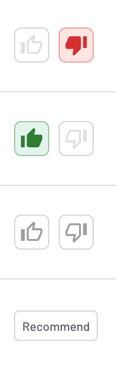
You can easily accept or reject a recommended company by clicking either the thumbs-up or thumbs-down action buttons next to the company name. Simply fill in the required fields and submit. Approved recommendations can be pushed directly to your CRM, if it is connected.
Tip: If you'd like to disable the automatic prompt for pushing recommendations to the CRM, please reach out to your Project Manager, who will coordinate with your Account Director
Once actioned, the corresponding button will be highlighted in the table to reflect the submitted action, making it easy to identify the company’s recommendation status.
You can action a recommendation multiple times, with each action saved as a new record to maintain a log of the company's recommendation history.
Additionally, you can manually submit a company for recommendation by clicking the “Recommend” button.
Visit the company profile to see more details in the Recommendations widget (in the “Overview” tab) or the “Recommendations” tab, where you'll find more information such as the recommendation generation date, source, and the actions rationale.
The Recommendations feature is configurable, so you can toggle the view on or off to display recommendations in the Companies table based on your preference